blogs
11 apr 2026 • 5 min read
Turning my Old MacBook into a Jellyfin Server
tl;dr
“Dad, can we have Netflix?”
“We have Netflix at home.”
Netflix at home:
Purchasing a Raspberry Pi has been rotting on my wishlist for about a year now. But honestly, if I'm trying to self-host something like Jellyfin, a Pi alone isn't exactly gonna cut it, is it? By the time I'd buy the Pi, a decent enclosure, and a good SSD, the price tag gets ridiculous. It's hard to justify spending that much just to run a "small experiment".
Then there's my old MacBook. It's been sitting in a drawer for about six months now, and the screen has been dead for about ten months. It'll cost me a fortune to get it replaced. I could literally purchase a new laptop with that much money. Every once in a while, I hook it up to my monitor to remind myself it still works. Last week, I saw it lying there, and it finally clicked. I could just start here.
People are out there buying used Mac Minis specifically to build home servers, and a MacBook is basically just a Mac Mini with a battery.
Turning my MacBook into a server
While wiping it clean, my first instinct was to install Linux. But trust me, it's way easier to stick with macOS.
1. Prevent MacBook from going to sleep
There are a dozen ways out there to prevent your MacBook from sleeping when you close the lid. I plan to keep it running 24x7, so I skipped all third-party apps and went with the nuclear option.
sudo pmset -a disablesleep 1Here, it asks the power management settings to disable the system's ability to sleep, irrespective of your other settings.
2. Network
IP addresses are dynamic by default, but you need a static one to keep your server reachable. You can assign a static IP address by going to System Settings > Network. Choose your connection, go to the TCP/IP tab in Details, change the Configure IPv4 option to Using DHCP with manual addresses, and assign your desired IP address there.
3. SSH Access
Well, this turned out to be surprisingly easier than I thought. Just go to Settings > General > Sharing and enable Remote Login. Viola, you can now SSH into your MacBook with a password.
ssh omega@<ip address>SSH keys are more secure than a password. So I switched to that instead. I store mine on 1Password, so I generated one there. You can generate a key pair yourself with this command:
ssh-keygen -t ed25519 -f ~/.ssh/omegaNow, copy the public key into your server using the command:
ssh-copy-id -f -i ~/.ssh/omega.pub omega@<ip address>Now, disable password-based login entirely. Edit the /etc/ssh/sshd_config with the following setting.
PasswordAuthentication no
PermitEmptyPasswords no
ChallengeResponseAuthentication no
UsePAM no
KbdInteractiveAuthentication no
This essentially locks out everyone except those with the key. This section is already getting a bit long, so I won't explain what each line does. Please do look it up yourself if you are curious.
Installing Jellyfin
By this stage, I already had Docker up and running. My plan was to containerize everything on this machine. But then I hit the Jellyfin documentation and saw this banner right at the top:
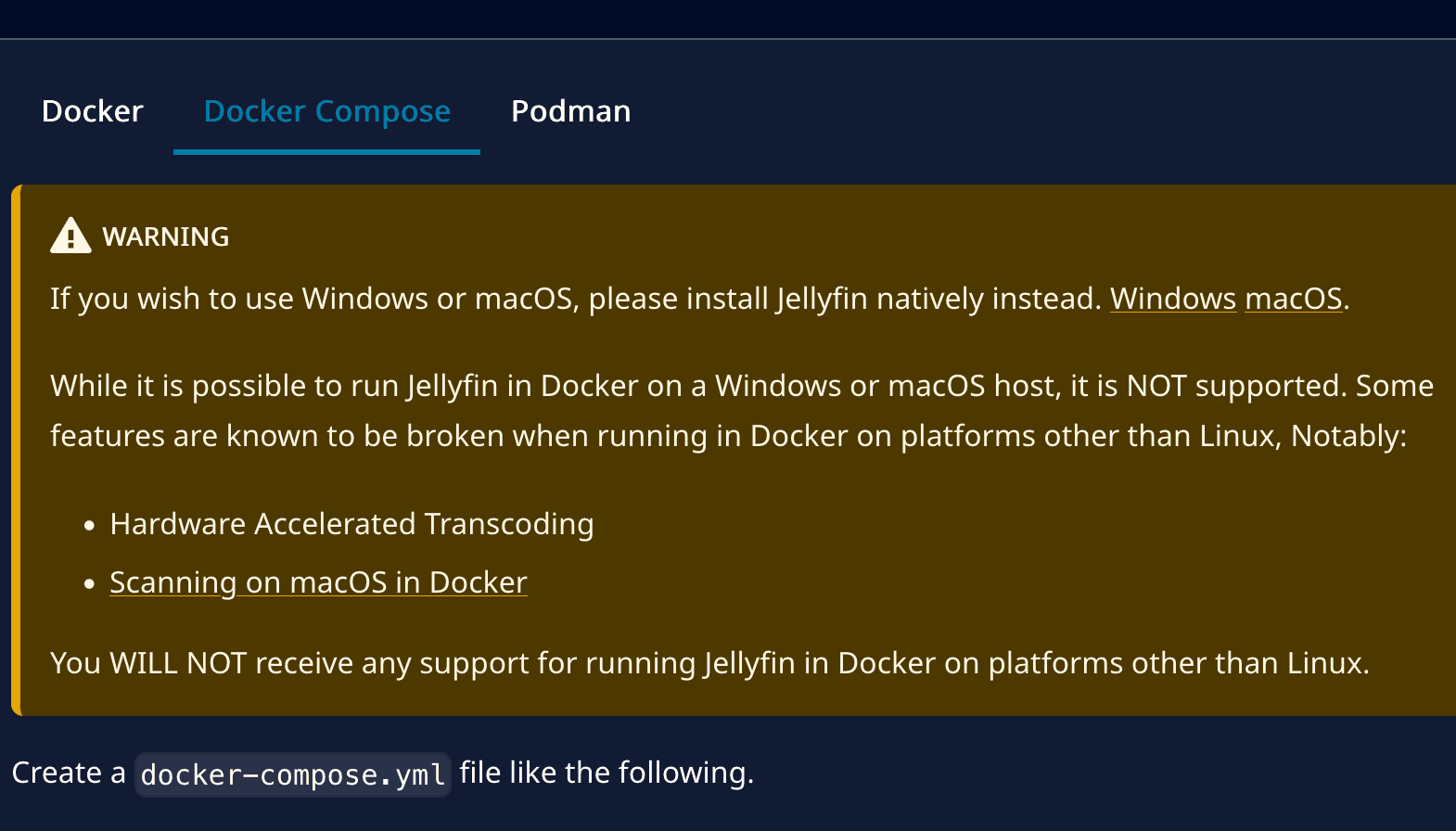 Warning for Docker on MacOS
Basically, it was asking me to just install Jellyfin like any other standard macOS app. I complied. At this point, I felt more like a Soydev than a hackerman. The only remaining step was to copy my media into the Jellyfin-recommended folder structure.
And just like that, I had my entire library accessible on every device in my home network.
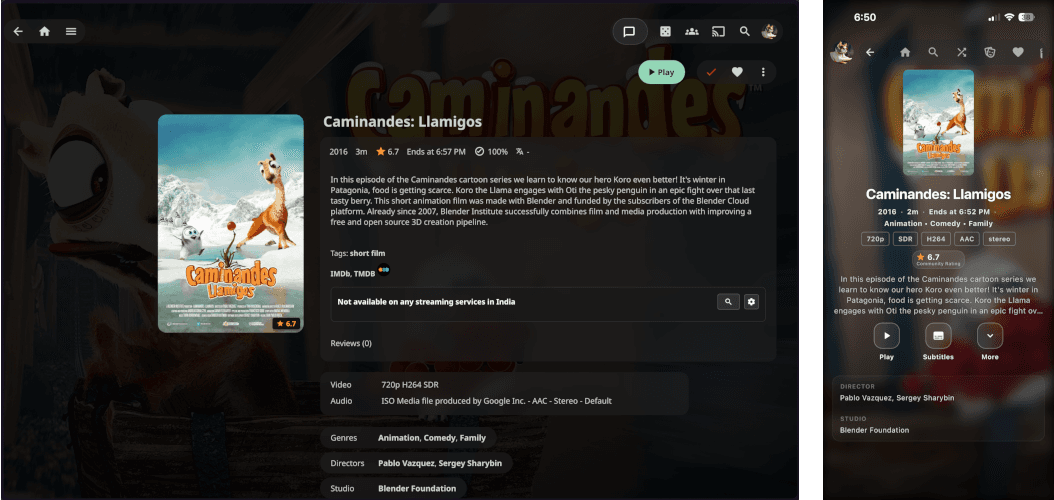 Jellyfin Web and Moonfin mobile app
The media shown in the screenshots is Caminandes: Llamigos, an open-source short film produced by the Blender Foundation. It is licensed under Creative Commons Attribution 4.0. You can find more of their work at peach.blender.org.
Exposing traffic to the internet
1. Tailscale
Like any responsible person, I started by installing Tailscale. With a few clicks, I was streaming media on devices outside my network.
However, I'm also planning to move my Ente photos to this server, and Tailscale's private-mesh nature makes it impossible to share album links publicly. So, I scrapped this option.
2. Cloudflare tunnel and Tailscale funnel
Cloudflare tunnel would have been the path of least resistance for exposing my server to the web for free. Sadly, streaming videos is strictly against their TOS, and I'm not trying to get my account banned.
Then there's the Tailscale funnel. It's a solid free option. It is meant for temporary sharing of local development servers. Reddit users from the Jellyfin community complained about bandwidth issues from time to time. I didn't want to abuse a free service either. I dropped this option, too.
3. Reverse proxy and port forwarding
Probably, the most robust solution is to run a reverse proxy on the server and only allow HTTPS traffic through port 443. As I explained earlier, IP addresses are dynamic by default. Just like your local network, your public IP address changes whenever the IP feels like it. Purchasing a static IP is definitely one option, but the popular workaround is using Duck DNS.
Duck DNS acts as your beacon. You run a client on your server that periodically pings the Duck DNS servers with an HTTP request, "Hey, my current IP is <ip addresss>". To make this work, you have to forward ports 80 and 443 on your router. I went to the login, only to realize the technician had changed the default router password, likely anticipating that I'd try to mess with it. Now, that was another dead end.
4. Building My Own Tunnel
This is when I read about creating your own tunnel. I still have my free 1GB EC2 instance on AWS. I could just tunnel my traffic and set up a reverse proxy there. And that's exactly what I did.
I created another SSH key pair, this time to let my home server SSH into the EC2. A simple command opened the tunnel:
ssh -f -N -R 8096:localhost:8096 admin@<ip address>I configured a reverse proxy using Caddy to point to that port. Since Jellyfin runs on port 8096 by default, Caddy just picks up the traffic from the tunnel and serves it over HTTPS. And just like that, I got it working with zero issues.
Hacking my Samsung TV
There are plenty of third-party clients on both iOS and Android, but my Samsung TV runs on Tizen OS. The official Jellyfin client isn't available on the App Store. The workaround was to enable developer mode and push a signed build to the TV over the local network.
I spent hours trial-and-erroring different methods before finally getting a build to stick. Once I figured it out, I wanted to install a even better-looking Jellyfin client called Moonfin.
I ended up forking a Tizen installer that worked for me, and built a moonfin-tizen-installer. I've published it as a Docker image that handles everything from downloading the latest Moonfin release, signing it, and installing it on your Samsung TV with a single command. Convenient.
docker run --rm --platform linux/amd64 abhayvashokan/moonfin-installer <samsung tv ip>What next?
I've really grown to love the Jellyfin community. There's so much room to hack around; plenty of cool integrations, plugins, and custom CSS. I have spent way too many hours customizing the UI to my liking.
The features are actually impressive. Syncplay stands out; you could start a watch party with your friends, and everyone stays in sync. One thing that's missing, and what the community keeps asking for is a native chat feature. I'm planning to implement that myself, as a plugin ofc.
It's also wild how Jellyfin just handles the heavy lifting. It automatically pulls the movie details, reviews, subtitles, and even cast and crew images. It even transcodes media on the fly for devices that don't support a particular format. I've enabled hardware acceleration to use my MacBook's GPU via VideoToolbox to reduce load on my CPU. How cool is that?
Now that I finally have a functional server at home, I'll be using it as a playground for a bunch of other experiments.
Recent blogs
My favorite superhero is Superman!
Feb 15, 2026 • 2 minute read
How I Self-Hosted Ente - And How You Can Too
May 24, 2025 • 10 minute read
Growing Up in Bangalore's Air Force Quarters
October 13, 2024 • 2 minute read
Dropping tables, dropping columns and renaming columns in a safe way in Ruby on Rails
September 17, 2024 • 11 minute read
It Only Took a Million Tries, But My Portfolio Is Done!
September 8, 2024 • 4 minute read